

If you’re learning how to add a server in mt5, the good news is that the process is usually simple. In MetaTrader 5, the server is the bridge between your platform and your forex broker. It controls price feeds, charts, login access, and order execution. Knowing how to add a server in MT5 helps improve your trading experience.
Traders often need to add or find a server after installing MT5, changing brokers, moving from a demo to a live account, or setting up a new laptop. When the server is wrong, MT5 feels like a locked door. When it’s right, everything starts working as it should. This guide shows the cleanest way to set it up and fix common problems fast.
Understanding how to add a server in MT5 can also help you troubleshoot connection issues effectively.
How to Add a Server in MT5 Step by Step
On desktop MT5, adding a broker server usually happens during login. The exact server name matters, especially in forex, where one wrong login can connect you to the wrong account type or fail completely.
To ensure a smooth trading experience, mastering how to add a server in MT5 is crucial for every trader.
Here are the basic steps:
- Open MetaTrader 5.
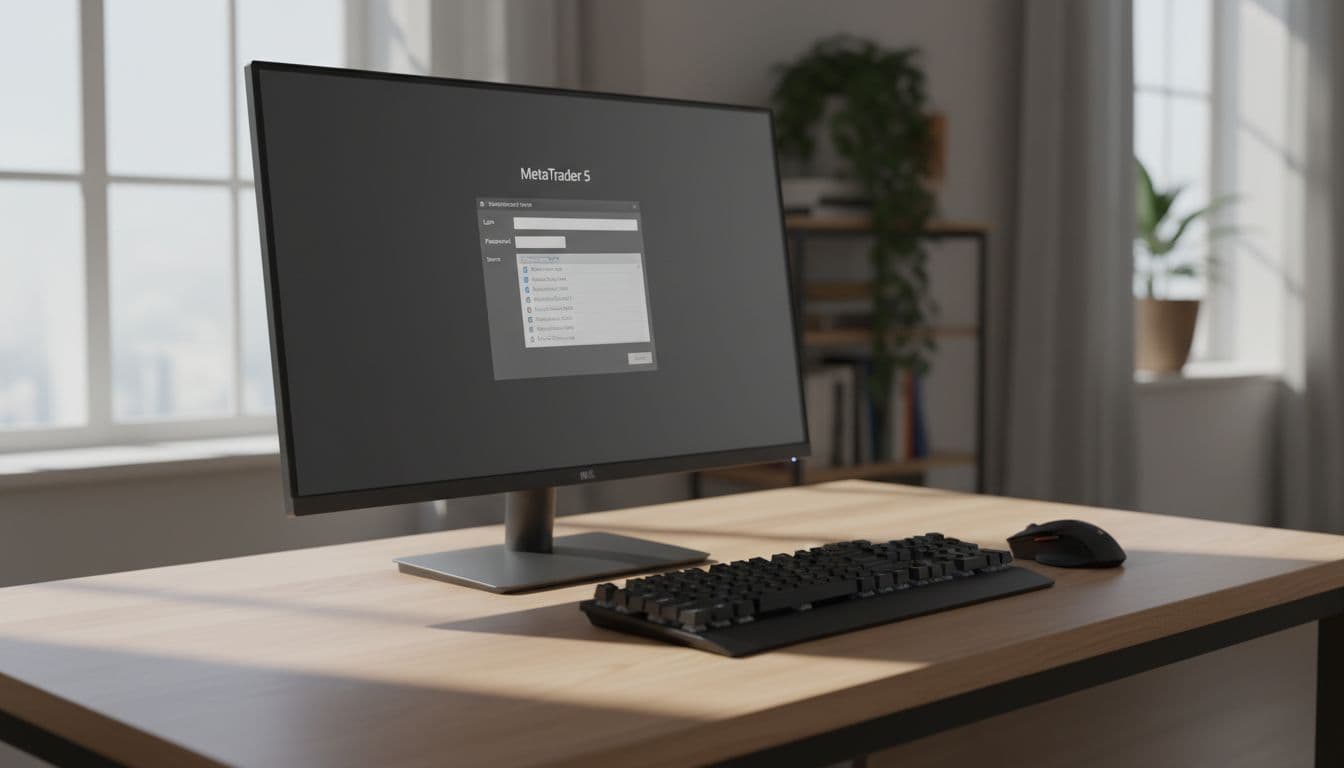
- Click File, then choose Login to Trade Account.
- In the broker field, use Find Broker or type your broker’s name.
- Wait for MT5 to scan and show available servers.
- Select the correct server name.
- Enter your account number and password.
- Click OK to connect.
Some forex brokers offer more than one server. You may see names for demo, live, backup, or region-based servers. That’s normal. Use the exact server name your broker sent you, because similar names can point to different environments.
Always refer back to guides on how to add a server in MT5 for the latest information.
If you want another walkthrough, this MT5 server setup guide shows the same process in a practical way.
Where to find the correct server name from your forex broker
Start with the broker’s welcome email. That’s the most common place. If it’s not there, check the client portal, account dashboard, or live support chat.
Server names often look almost the same. For example, one may be for demo accounts, while another is for live forex trading. Match the full name, not just the broker brand.
What to do if the server does not appear in MT5
First, recheck the spelling of the broker name. A small typo can stop MT5 from finding the server list. Next, run the broker search again and restart the platform.
If that doesn’t help, update MT5 to the latest version. Some older installs don’t pull server data correctly. In a few cases, the broker’s own MT5 download works better than the generic one because it already includes the right server records.
If MT5 can’t find the server, the issue is often the broker name format, not the account itself.
Common MT5 Server Problems and How to Fix Them
After you add the server, login problems can still happen. In forex trading, that usually comes down to a few common issues: wrong account details, wrong password type, poor internet, platform version mismatch, broker maintenance, or trying to use an MT4 account on MT5.
A server problem can feel like a market issue at first. Charts stop updating, quotes freeze, or the login window rejects your details. Yet most of these problems have simple fixes.
One useful reference is this guide on fixing the invalid account error, which explains why MetaTrader blocks access when credentials don’t match.

Why your MT5 account says invalid account or authorization failed
For those struggling, seeking advice on how to add a server in MT5 can clarify many common concerns.
This message usually points to one of three things: the wrong login number, the wrong password, or the wrong server.
Your login number is the account ID from the broker. Your trading password lets you place trades. The investor password is often read-only. If you enter the investor password by mistake, MT5 may block trading access or reject the login.
Also, copied details can carry hidden spaces. That small error breaks the login. Paste carefully, then remove any extra blank spaces before or after the number or password.
This knowledge plays a vital role when learning how to add a server in MT5 without issues.
Keep in mind that MT4 and MT5 accounts are not always interchangeable. Even if the broker offers both platforms, the credentials may be different. This explanation of the invalid account issue helps if you want a second source.
How to check if the issue is your platform, internet, or broker
Look at the lower-right corner of MT5. If the connection speed or data flow is missing, the platform may not be connected.
Then test your internet by opening another website. If that works, try a second network, such as mobile hotspot, to rule out local connection trouble. Also check the broker’s service notices, because server maintenance can block access for a short time.
Consider reading more about how to add a server in MT5 to enhance your understanding.
When the server appears in MT5 but the login still fails, broker support is usually the fastest path. They can confirm the correct server, account status, and whether your forex account is live, demo, or under review.
Best Practices After You Add a Server in MT5
Once MT5 connects, don’t rush into a trade. First, confirm that the account details match what you opened with the broker. Check whether it’s a demo or live account, the base currency, the leverage setting, and the symbols available in Market Watch.
In forex, small setup details can change your risk. A different account type may show different spreads, contract sizes, or margin rules. Also, add the forex pairs you plan to trade, such as EUR/USD or GBP/USD, and watch whether prices are updating in real time.
Check your forex account details before you place a trade
Reviewing materials on how to add a server in MT5 can reinforce your trading techniques.
Think of this as a quick cockpit check before takeoff. Review your lot size, leverage, margin level, and server time. Those settings affect position size, stop-loss distance, and trade timing.
If spreads look odd or symbols are missing, pause and verify the account type with your broker before placing an order.
Save your login details and keep your MT5 platform updated
Store your broker emails in a safe place so you can find the server name later. Don’t share passwords, and avoid saving them on devices you don’t control.
Also, keep MT5 updated. Older versions can cause login and connection issues. When possible, download MT5 from the broker’s official site so the server setup matches your forex account from the start.
Learning how to add a server in mt5 comes down to two things: using the right broker server name and entering the right login details. If something fails, check the server, password type, platform version, and connection status before assuming the account is broken. Once MT5 connects properly, you can stop fighting setup problems and focus on charts, trade execution, and solid risk control.
Learning how to add a server in mt5 comes down to two things: using the right broker server name and entering the right login details. If something fails, check the server, password type, platform version, and connection status before assuming the account is broken. Once MT5 connects properly, mastering how to add a server in MT5 allows you to focus on charts, trade execution, and solid risk control.
You Might Also Like:








 English
 Afrikaans
 Arabic
 French
 Indonesian
 Portuguese
 Thai
Thai Japanese
 Chinese (China)
 Spanish
 Uzbek
Uzbek Vietnamese
 Hindi
Hindi Urdu
Urdu German
 Turkish
 Russian
 Italian
 Polish
 Chinese (Taiwan)
 Chinese (Hong Kong)